Create cinematic images from a prompt——Bring them to life with video
Create images from text and references, then turn selected frames into video on one connected canvas.
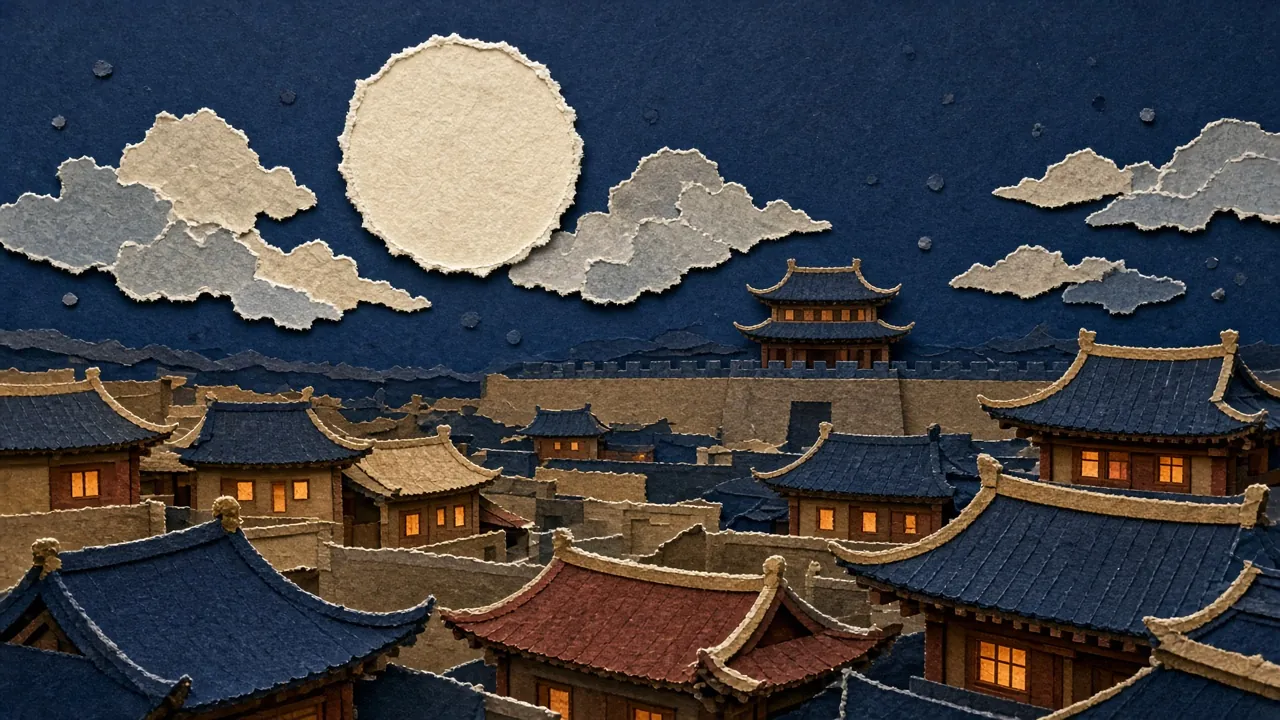
 PlayingView workflowStory · Curfew in Chang'anTurn a script into a sequence of images and a short story.
 Product · From snapshot to adStart with a product photo and explore ad imagery and motion.
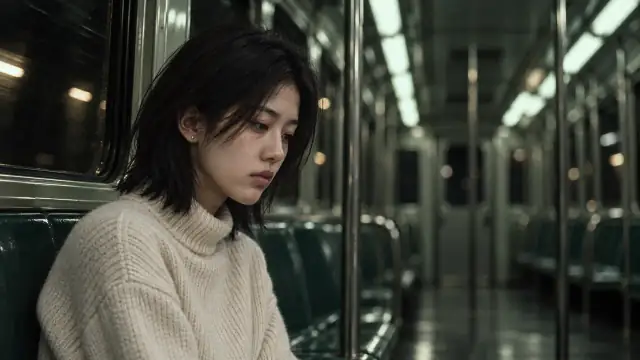 Short drama · Day SevenKeep a character consistent across storyboard scenes and video.
Why create on a canvas
Keep every creative step in view.
Connect AI image generation, reference materials, and image-to-video on one canvas. Create a single image or build a sequence of shots step by step.
Bring your own references
Use people, products, or style images as references. Connect them to a generation node to guide what stays consistent and what changes.
How to use reference imagesCompare versions side by side
Keep prompts, source material, and results together. Compare composition and lighting, then continue from the direction you like.
How the canvas worksTurn a still image into video
Start with a selected frame and describe the subject's action and camera movement. Keep images and videos together with a clear creative history.
How to create image-to-videoNot sure how to describe it? Start with a template.
Preview the result and prompt first. Choose a template when you are ready, then edit it. Previewing never starts generation.
Frequently Asked Questions
Key facts about the WandPop canvas, model availability, and creation workflow.
Is WandPop free to try?
Yes. New registered accounts receive starter trial credits to explore image generation and canvas features without entering payment details.
Do I need to sign up before generating?
Yes. You can explore the canvas, browse templates, and preview demo workflows as a guest, but an account is required to generate images and videos and save your work.
What is an AI image-to-video generator?
An AI image-to-video generator turns a still image into a short video. It uses your starting image and a motion prompt to create movement.
Can I turn my own photo into a video?
Yes. You can use your own image as the starting point for AI video creation and describe how you want the scene to move.
Can I generate an image before creating a video?
Yes. WandPop lets you create images from text prompts and then use a selected frame to start a video on the same canvas.
Can I use reference images?
Yes. WandPop supports reference images to help guide characters, objects, composition, and visual style. The available controls depend on the selected model.
Can I keep the same character across multiple scenes?
Reference images can improve character consistency, but identical results are not guaranteed. Reuse suitable references and review each generated scene on the canvas.
How do I write a good image-to-video prompt?
Describe the movement you want to see. Focus on subject actions, camera movement, and changes in the environment rather than repeating everything already visible in the image.
Can I work on multiple shots in one workspace?
Yes. WandPop's creative canvas lets you organize images, reference materials, and video shots together as you develop a sequence.
Can I compare different generated images?
Yes. You can keep different versions on the canvas and compare their composition, lighting, and visual direction side by side.
Can I edit prompts from templates?
Yes. You can preview a template and modify its prompt before using it for generation. Previewing a template does not itself start a generation request.
Can I use product photographs as references?
Yes. Product photographs can be used as references in the image creation workflow. The results depend on your prompt, the source image, and the model.
Do all AI models offer the same features?
No. Input requirements, generation controls, and available features can differ between models. Check the selected model before creating.
How much does AI generation cost on WandPop?
Generation costs depend on the selected model. The studio displays model pricing so you can review the relevant cost before generating.